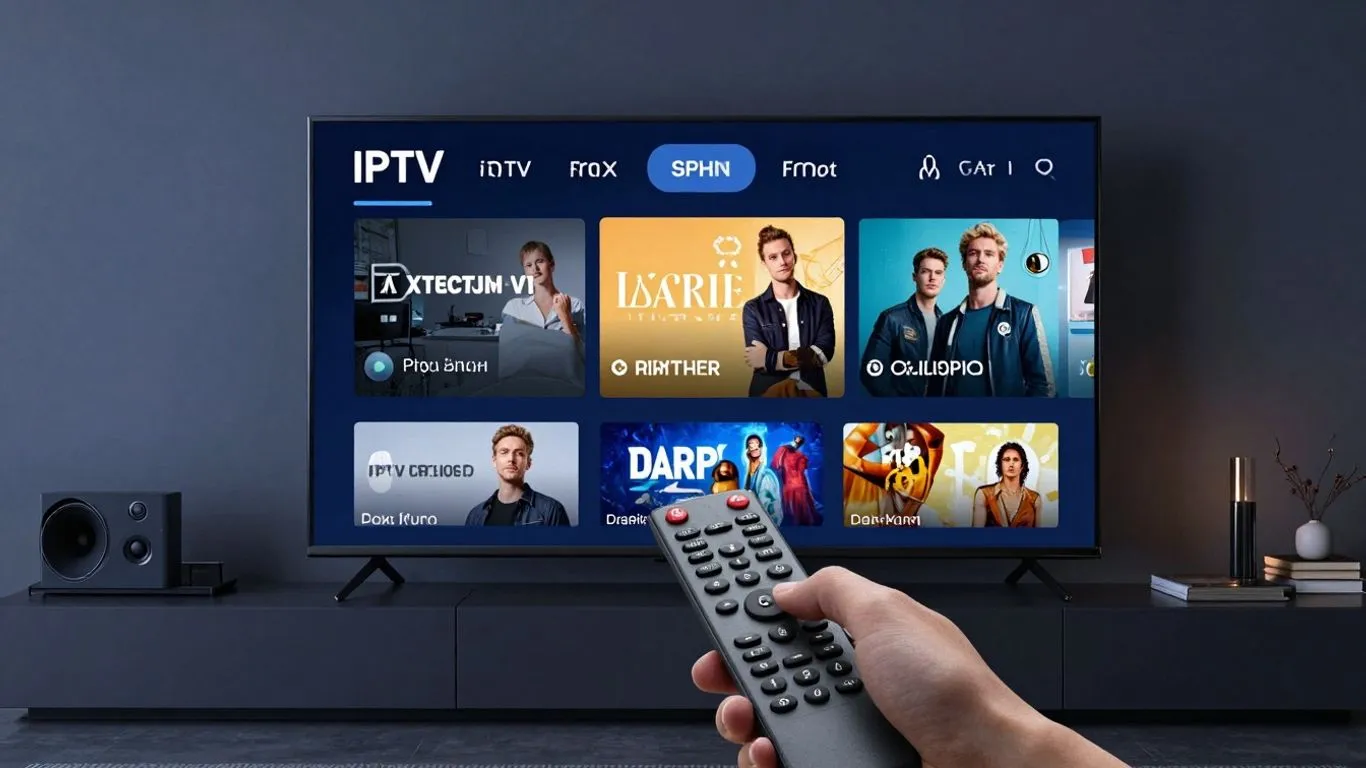
So, you’ve got IPTV and you’re looking for a good way to watch it. Lots of apps out there do the job, but honestly, the Tivimate app really stands out. It’s not just another player; it’s designed to make your whole IPTV watching thing way smoother and more enjoyable. We’re going to walk through what makes Tivimate so good and how you can get the most out of it. Think of this as your friendly guide to making your IPTV setup work better.
Key Takeaways
- The Tivimate app is a user-friendly option for managing your IPTV services.
- It offers features like a clear channel list and an electronic program guide (EPG).
- You can adjust settings in the Tivimate app to fit how you like to watch.
- Setting up your IPTV service with Tivimate is pretty straightforward.
- Keeping the Tivimate app updated helps ensure it runs well.
Understanding The Tivimate App
What is Tivimate?
Tivimate is a popular application that helps you manage your IPTV subscriptions. Think of it as a really good remote control and guide for all your live TV channels, movies, and shows that come through your internet connection. It’s designed to make watching IPTV less of a hassle and more enjoyable. It’s not an IPTV service itself, but rather a player that lets you use the services you’ve already signed up for. You’ll need a separate IPTV subscription to use Tivimate, but it makes organizing and watching that content much simpler.
Why Choose Tivimate for IPTV?
Lots of people pick Tivimate because it’s pretty straightforward to use, even if you’re not super tech-savvy. The interface looks clean and modern, which is a nice change from some other apps out there. It supports different ways of adding your IPTV service, like using M3U URLs or Xtream Codes, which is handy. Plus, it has a built-in guide for what’s on TV, so you don’t have to guess. If you’re looking for a reliable way to watch your IPTV channels without a lot of fuss, Tivimate is a solid choice. Many users find it a step up from other players, especially when they start exploring what it can do. You can find more about different IPTV options and boxes on various IPTV services.
Key Tivimate Features Overview
Tivimate packs in a bunch of useful features that make managing your IPTV channels a lot easier. Here’s a quick look at some of the highlights:
- Intuitive Interface: It’s designed to be easy to look at and use, with clear menus and options.
- Electronic Program Guide (EPG): This is a big one. It shows you what’s currently playing and what’s coming up on your channels, so you always know what to watch.
- Playlist Management: You can add and organize your IPTV playlists, making it simple to switch between different services or categories.
- Channel Grouping: Tivimate lets you sort your channels into groups, like ‘Sports’, ‘Movies’, or ‘News’, so you can find what you’re in the mood for quickly.
- Search Functionality: Need to find a specific show or channel? The search feature helps you locate it fast.
- Customization Options: You can tweak settings to make the app work best for you, from how channels are displayed to playback quality.
Tivimate aims to simplify the IPTV viewing process by providing a user-friendly platform with robust features. It focuses on making channel management and program discovery straightforward for the average user.
Getting Started with Tivimate
So, you’ve decided Tivimate is the way to go for your IPTV needs. Awesome choice! Now comes the fun part: getting it set up. Don’t worry, it’s not as complicated as it sounds. We’ll walk through the whole process, from downloading the app to plugging in your IPTV service details.
Downloading Tivimate on Your Device
First things first, you need to get the app onto your device. Tivimate is available on a few different platforms, so the exact steps might vary a little depending on what you’re using (like an Android TV box, Fire Stick, or even a regular Android phone or tablet). Generally, you’ll find it in your device’s app store. If you’re on an Android-based device, a quick search in the Google Play Store should do the trick. For Amazon Fire devices, you’ll look in the Amazon Appstore. The app itself is free to download, which is a nice bonus.
Here’s a general idea of how to find and download it:
- Android Devices (TV Boxes, Phones, Tablets): Open the Google Play Store, search for “Tivimate”, and hit install.
- Amazon Fire Devices (Fire TV Stick, Fire Tablet): Open the Amazon Appstore, search for “Tivimate”, and install.
- Other Platforms: Check your device’s specific app store or the official Tivimate website for download instructions.
Installing and Launching the Tivimate App
Once the download is finished, the installation usually happens automatically. If it doesn’t, you might need to go to your device’s downloads folder or notification area and select the Tivimate file to begin the installation. Just follow any on-screen prompts. After it’s installed, you’ll find the Tivimate icon in your app list. Go ahead and tap it to open the app for the first time. You’ll be greeted by a clean interface, ready for the next step.
Setting Up Your IPTV Service with Tivimate
This is where your IPTV service actually comes to life within Tivimate. You’ll need a couple of pieces of information from your IPTV provider: your M3U playlist URL and, if available, your Electronic Program Guide (EPG) URL. These are like the keys that unlock all your channels and their schedules.
When you first launch Tivimate, it will likely prompt you to add a playlist. If not, you can usually find this option in the app’s settings.
- Add Playlist: Look for an option like “Add Playlist” or “Add M3U Playlist”.
- Enter URL: You’ll see a field to paste your M3U URL. Carefully copy and paste the URL provided by your IPTV service.
- Name Your Playlist: Give it a name so you can easily identify it later, especially if you plan on using multiple services.
- Add EPG URL (Optional but Recommended): If your provider gave you an EPG URL, add that in the corresponding field. This is what makes the TV guide work.
- Save and Load: Once you’ve entered the details, save the settings. Tivimate will then attempt to load your playlist and EPG data. This might take a minute or two depending on the size of your playlist.
After successfully adding your playlist and EPG, Tivimate will start populating your channel list and guide. It’s a pretty straightforward process, and the app is designed to make it as painless as possible. If you run into any hiccups, don’t sweat it; we’ll cover troubleshooting later on.
Navigating the Tivimate Interface
Alright, so you’ve got Tivimate installed and your IPTV service hooked up. Now what? It’s time to actually use the thing. Don’t worry, it’s not as complicated as it might seem at first glance. Tivimate is built to be pretty straightforward, and once you get the hang of it, you’ll be zipping through channels like a pro.
Exploring the Channel List
This is probably where you’ll spend most of your time. The channel list is exactly what it sounds like: a big ol’ list of all the channels your IPTV provider offers. You can scroll through it using your remote. If you have a lot of channels, it can feel a bit overwhelming, but Tivimate helps out.
- Quick Scrolling: Use your remote’s page-up/page-down buttons or equivalent to jump through the list faster.
- Favorites: You can mark channels as favorites. This is a game-changer. Just hit the star icon (or whatever it is in your version) next to a channel, and it’ll get its own special section at the top of your list. Super handy for the channels you watch most.
- Categories: Tivimate often sorts channels into categories automatically, like ‘Movies’, ‘Sports’, ‘News’, etc. You can usually access these categories from the main menu or by pressing a specific button on your remote.
Utilizing the Electronic Program Guide (EPG)
This is where Tivimate really shines compared to some other players. The EPG, or Electronic Program Guide, is like your TV guide from back in the day, but digital and way more useful. It shows you what’s currently playing and what’s coming up on each channel for the next several days.
- Accessing the EPG: Usually, there’s a dedicated button on your remote or an option in the app menu to bring up the EPG. It often looks like a grid.
- Navigating the Guide: You can scroll through time to see future programs and scroll through channels to see their schedules. Clicking on a program might give you more details about it.
- Setting Reminders/Recordings: If you have the Pro version, you can often set reminders for shows or even schedule recordings directly from the EPG. This is a huge plus if you tend to miss things.
Understanding Category and Search Functions
When you have hundreds of channels, just scrolling isn’t always efficient. That’s where categories and search come in.
- Categories: As mentioned, Tivimate tries to group channels. You can usually find these categories listed on the side or in a menu. It’s a good way to jump straight to, say, all the sports channels without wading through kids’ cartoons.
- Search: This is your best friend for finding something specific. There’s usually a search icon or option. Type in the name of a show, movie, or even an actor, and Tivimate will try to find it for you across your available channels and EPG data. It’s a quick way to see if that movie you wanted to watch is on tonight.
Getting comfortable with these basic interface elements will make your IPTV viewing experience much smoother. Don’t be afraid to click around and see what each button does. You can always reset things if you get lost, but usually, it’s pretty intuitive.
Remember, the exact layout might vary slightly depending on your device and the Tivimate version you’re using, but the core functions remain the same. You can find more details on setting up your IPTV service if you need a refresher on that part.
Customizing Your Tivimate Experience
So, you’ve got Tivimate set up and your IPTV service is running. That’s great! But honestly, the real magic of Tivimate isn’t just that it works, it’s how much you can tweak it to be exactly how you want it. It’s like getting a custom paint job for your car, but for your TV channels.
Personalizing Channel Settings
This is where you really make Tivimate your own. Forget scrolling through channels you never watch. You can totally rearrange things here. Want your favorite sports channels all grouped together at the top? Easy. Don’t like a certain genre? You can hide those channels completely. It’s all about making your channel list work for you, not the other way around.
Here’s a quick rundown of what you can do:
- Reorder channels: Drag and drop to put them in your preferred sequence.
- Create custom groups: Make your own categories, like “Evening News” or “Kids Shows”.
- Hide unwanted channels: Declutter your list by removing channels you never tune into.
- Add or remove favorites: Mark channels you watch often for quick access.
Adjusting Video and Playback Preferences
Beyond just the channels, Tivimate lets you fine-tune how you watch. Think about the picture quality, how the guide looks, or even how the player behaves. You can set things up so that every time you hit play, it’s just right for your setup.
- Aspect Ratio: Choose how widescreen or standard definition content is displayed.
- Audio Settings: Select preferred audio tracks or adjust volume levels.
- Subtitle Options: Customize font size, color, and position for subtitles.
- Player Behavior: Set default playback speed or choose how the EPG interacts with the player.
Making these small adjustments can really change how you feel about watching TV. It’s about removing little annoyances and making the whole experience smoother. Think of it as setting the perfect mood lighting before a movie, but for your TV channels.
Leveraging Tivimate Pro Customization Options
If you’ve decided to go with Tivimate Pro, you get even more control. This version really digs into the details, giving you options that the free version doesn’t touch. It’s for those who want to get the absolute most out of their IPTV setup. You can really get granular with things like recording schedules, advanced EPG settings, and even how the interface looks and feels. For anyone serious about their IPTV, the Pro version is definitely worth a look to see what extra tweaks are possible. You can find out more about the Tivimate Pro features and how they can benefit your viewing.
Enhancing Your IPTV Viewing
So, you’ve got Tivimate set up and you’re watching your favorite shows. That’s great! But did you know there’s more you can do to make your IPTV experience even better? It’s not just about having a good app; it’s about tweaking it to fit exactly how you like to watch. Tivimate is known as the Best IPTV App for a reason, and a lot of that comes down to how much you can customize it.
Advanced Tivimate Features for Better Streaming
Tivimate has some neat tricks up its sleeve that go beyond just showing you channels. For starters, the multi-view feature is pretty cool if you want to keep an eye on a few things at once. Imagine watching a sports game while also having another channel on standby – it’s possible. Then there’s the DVR functionality, which lets you record shows to watch later. This is super handy if you miss something live or just want to rewatch a favorite moment. Don’t underestimate the power of a good Electronic Program Guide (EPG); Tivimate’s is usually pretty solid, giving you a clear rundown of what’s on.
Managing Multiple Playlists in Tivimate
Got more than one IPTV service? Or maybe you like to keep your live TV separate from your VOD (Video On Demand) content? Tivimate lets you manage multiple playlists easily. This means you can switch between different providers or content categories without a hassle. It’s a lifesaver for keeping things organized, especially if you have a lot of channels. You can even set a default playlist to load when you open the app, saving you a few clicks every time.
Optimizing Your Tivimate Setup
To get the most out of Tivimate, especially on devices like an Android TV box or Firestick, a few tweaks can make a big difference. Make sure your internet connection is stable – IPTV really needs good bandwidth, especially for HD or 4K streams. Also, check the app’s settings for video playback. You can often adjust things like aspect ratio or even enable hardware acceleration if your device supports it, which can lead to smoother playback. It’s often considered the Best App for android boxes and the Best IPTV App for Firestick because of these fine-tuning options. For those using a Best IPTV App for Smart TV, similar optimizations apply, focusing on network stability and app settings.
Sometimes, the simplest settings can have the biggest impact. Don’t be afraid to explore every option in the Tivimate menus. You might find a small adjustment that makes your viewing experience significantly better without needing any extra add-ons or complicated setups.
Troubleshooting Common Tivimate Issues
Even with a great app like Tivimate, sometimes things just don’t work right. It happens to everyone, and usually, it’s not a big deal to fix. Let’s go over some of the more common hiccups people run into and how to sort them out.
Resolving Connection Problems
This is probably the most frequent issue. You’re trying to watch something, and it just won’t load, or you get an error message about not being able to connect to your IPTV provider. First things first, check your internet connection. Is your Wi-Fi working? Can you browse other websites? If your internet is down, Tivimate won’t work, obviously. Sometimes, a simple router restart can fix things. Just unplug it for about 30 seconds and plug it back in.
If your internet is fine, the problem might be with your IPTV service itself. Your provider might be having temporary issues, or maybe your subscription has expired. It’s worth checking your provider’s status page or contacting their support if you can. Also, make sure your M3U URL and any other login details you entered into Tivimate are correct. A typo there will stop everything cold.
Here’s a quick checklist:
- Verify your internet connection is active.
- Restart your router and modem.
- Double-check your IPTV provider’s M3U URL and login details in Tivimate.
- Confirm your IPTV subscription is current.
- Try restarting the Tivimate app itself.
Sometimes, the simplest solution is just to wait a bit. Servers can get overloaded, especially during peak viewing times. Give it ten minutes and try again.
Addressing Playback Errors
Playback errors can be super annoying. You select a channel, and instead of video, you get a black screen, a spinning circle, or an error message. A lot of times, this is related to the stream itself. Some streams are just unstable or might be down temporarily. Try switching to a different channel to see if the issue is widespread or isolated.
If it’s happening on multiple channels, clearing the Tivimate app’s cache can often help. This gets rid of temporary files that might be corrupted. On Android devices, you can usually do this through the device’s settings menu, under Apps, finding Tivimate, and then selecting ‘Clear Cache’. Make sure your Tivimate app is also updated to the latest version, as updates often include fixes for streaming issues. You can check for updates within the app or through your device’s app store. For Fire Stick users, clearing the cache and data is a common fix [bbba].
Tips for a Smooth Viewing Experience
To keep things running smoothly, a few proactive steps go a long way. Regularly updating Tivimate is important, as developers are always working to improve performance and fix bugs. Also, don’t overload your device. If you have too many apps running in the background, it can slow down Tivimate. Close any apps you’re not actively using.
Consider your device’s storage. If it’s almost full, it can impact app performance. Freeing up some space can make a difference. For those using Tivimate on less powerful devices, sometimes reducing the video quality settings within Tivimate can help prevent buffering or playback issues. It’s all about finding that balance between quality and stability for your specific setup. Keeping your IPTV provider’s service details up-to-date is also key.
Keeping Your Tivimate App Updated
So, you’ve got Tivimate all set up and you’re loving your IPTV. That’s awesome! But here’s something important, and honestly, a bit overlooked sometimes: keeping the app updated. It might sound like a small thing, but it really makes a difference in how smoothly everything runs.
Think of app updates like regular tune-ups for your car. You wouldn’t just ignore that check engine light, right? Well, updates for Tivimate are kind of the same. They’re not just about adding fancy new buttons; they often fix little glitches you might not even notice yet, and they can make the whole app work better and faster. Regular updates are key to a stable and enjoyable IPTV experience.
Why Updates Matter
- Bug Fixes: Developers are always finding and fixing little problems. An update might solve a playback stutter you’ve been experiencing or a weird EPG loading issue.
- New Features: Sometimes, updates bring cool new features or improvements to existing ones. You might get better ways to organize your channels or new playback controls.
- Security: Just like any app connected to the internet, updates can include security patches to keep your information safe.
- Performance Boosts: Often, updates are designed to make the app run more efficiently, using less battery or data, and just generally feeling snappier.
Keeping Tivimate current means you’re getting the best version of the app, with all the latest fixes and improvements. It’s the easiest way to avoid headaches down the line and just enjoy your shows.
When you’re using Tivimate, especially the Pro version, you want it to perform at its best. That means making sure you’re on the latest release. It’s pretty straightforward to check. Most of the time, your device’s app store will notify you when an update is ready. If not, you can usually find an option within Tivimate’s settings menu to check for updates manually. It’s a good habit to get into, maybe once a week or so, just to see if anything new has dropped. This proactive approach helps prevent issues before they even pop up, making your IPTV viewing much more pleasant. If you’re looking for a solid alternative player, you might want to check out IPTV Smarters Pro to see how it compares.
Keeping your app updated is a simple step that pays off big time. It ensures you’re always getting the most stable, feature-rich, and secure version of Tivimate available, letting you focus on what really matters – enjoying your favorite content without interruption.
Keeping your Tivimate app up-to-date is super important for the best viewing experience. Think of it like getting the latest features and fixes, making sure everything runs smoothly. Don’t miss out on improvements that can make your streaming even better! For the latest news and guides on keeping your Tivimate app in top shape, be sure to visit our website.
Wrapping Up Your Tivimate Journey
So, that’s pretty much it with Tivimate. We’ve gone over how to get it set up and some of the cool things it can do. It really does make watching your IPTV stuff a lot easier and more organized. Whether you’re just starting out or you’ve been using IPTV for a while, Tivimate is definitely worth checking out. It’s not overly complicated, and it does a good job of letting you see what’s on and find your favorite channels without a fuss. Give it a try, and you might find your TV viewing gets a whole lot better.
Frequently Asked Questions
What exactly is Tivimate?
Tivimate is a really cool app that helps you watch your IPTV channels. Think of it like a super-organized TV guide and player all in one, making it simple to find and watch all the shows and movies you get from your IPTV service.
Why should I use Tivimate instead of other apps?
Tivimate is awesome because it’s super easy to use and looks really nice. It lets you sort your channels, see what’s on with a TV guide, and even customize how it looks. Plus, the Pro version adds even more neat features for a top-notch experience.
How do I get Tivimate on my device?
Getting Tivimate is pretty easy! You can usually download it from your device’s app store, like the Google Play Store for Android devices or the Amazon Appstore for Fire TV. Just search for Tivimate and follow the simple installation steps.
How do I add my IPTV channels to Tivimate?
To add your channels, you’ll need the special link (called an M3U playlist URL) that your IPTV provider gives you. Inside Tivimate, you’ll find an option to add this link, and after a short wait, all your channels should pop up, ready to watch.
Can I change how Tivimate looks and works?
Absolutely! Tivimate lets you make it your own. You can rearrange your channels, create favorite lists, and even tweak how videos play. The Pro version gives you even more ways to make it perfect for just you.
What if I run into problems while using Tivimate?
Don’t worry if something goes wrong! Tivimate has helpful tips for fixing common issues, like if your channels aren’t loading or a video won’t play. Often, just restarting the app or checking your internet connection can solve the problem.